YouTube workflow
Use Flixier for YouTube with a clear editing plan
A YouTube video needs more than trimmed footage: viewers need a clear opening, understandable audio and a reason to keep watching. This guide walks through three practical edits, then separates what you can review in an editor from what you must still check in YouTube Studio.

The pain: a finished edit is not a finished upload
The hardest part is often deciding what belongs in the video before worrying about export settings.
-
1
Find the point of the video
Review your source footage and write one sentence describing what the viewer should learn or see. For a tutorial, identify the result first, then keep only the setup and actions needed to reach it. This gives every cut a purpose instead of leaving you with a shorter but still confusing recording.
-
2
Make the story easy to follow
Put the strongest relevant moment near the opening. Remove long pauses, repeated explanations and unrelated detours; use a title card or on-screen label only when it clarifies a change of topic. Watch the sequence without stopping to see whether a new viewer could follow it.
-
3
Review as a viewer would
Listen on ordinary speakers or headphones, read every caption and check the frame at both desktop and phone sizes. An edit that looks tidy on a timeline can still contain an abrupt audio change, text hidden near an edge or a demonstration too small to understand.
Three concrete workflows for YouTube videos
Choose the workflow that matches your source material rather than applying the same edits to every recording.
Example output: what an edited video should accomplish
Picture a five-minute screen-recorded walkthrough with a spoken introduction, a demonstration and a final result.
-
The edit cannot rescue an unclear demonstration
A polished opening will not help if the cursor moves too quickly or the important interface text is unreadable. In the example walkthrough, the viewer should be able to identify each action without guessing what changed.
WorkaroundRecord the difficult action again at a readable scale, or add a close-up where the original footage permits it.
-
Captions still need human review
Names, technical terms and numbers are especially easy to misread. If you add captions, play the finished sequence while following the text and check that lines appear when the words are spoken.
WorkaroundCorrect the transcript and timing before using captions as part of the final video.
-
An export does not publish your video
The edited file is only the video asset. Its title, description, thumbnail, visibility and audience settings require a separate review in YouTube Studio.
WorkaroundKeep a short upload checklist and watch YouTube's processed version before sharing its link.
Compliance notes: edit review versus upload review
Keep creative checks separate from YouTube's publishing choices; neither set replaces the other.
Before export
Before publishing on YouTube
Story
Before export
Check that the opening matches the promised topic and the ending resolves it.
Before publishing on YouTube
Make sure the title and description accurately represent the finished video.
Sound
Before export
Listen for clipped speech, distracting noise and sudden volume changes.
Before publishing on YouTube
Play the processed upload to catch any issue missed in the local file.
Text
Before export
Proofread on-screen labels and check that they remain readable on a phone.
Before publishing on YouTube
Review captions or subtitles separately if you provide them.
Rights
Before export
Identify music, footage, images and logos you did not create.
Before publishing on YouTube
Confirm you have the necessary rights and address any YouTube notices.
Privacy
Before export
Blur or remove visible personal details, messages and account information.
Before publishing on YouTube
Choose visibility deliberately and recheck the published page.
Audience
Before export
Avoid assuming that editing choices determine who the content is for.
Before publishing on YouTube
Set the applicable audience and other upload options in YouTube Studio.
See the difference a focused cut can make
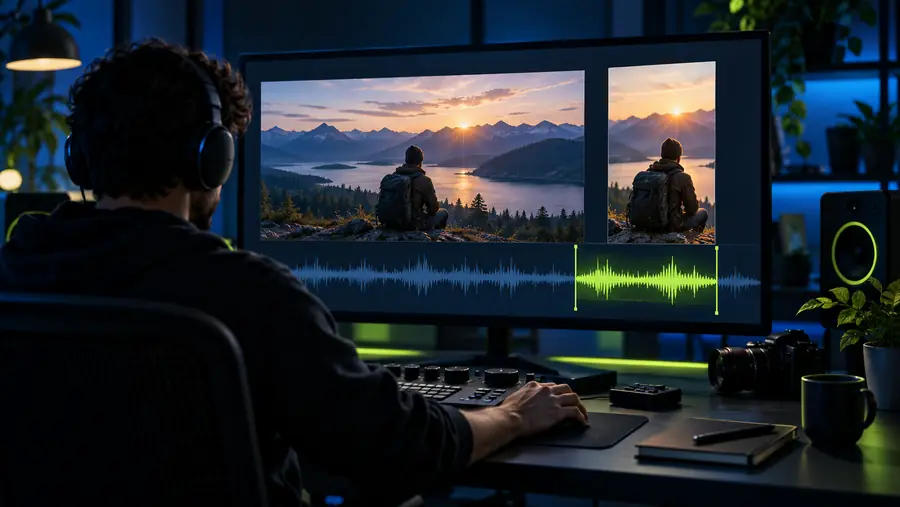
- Source recording
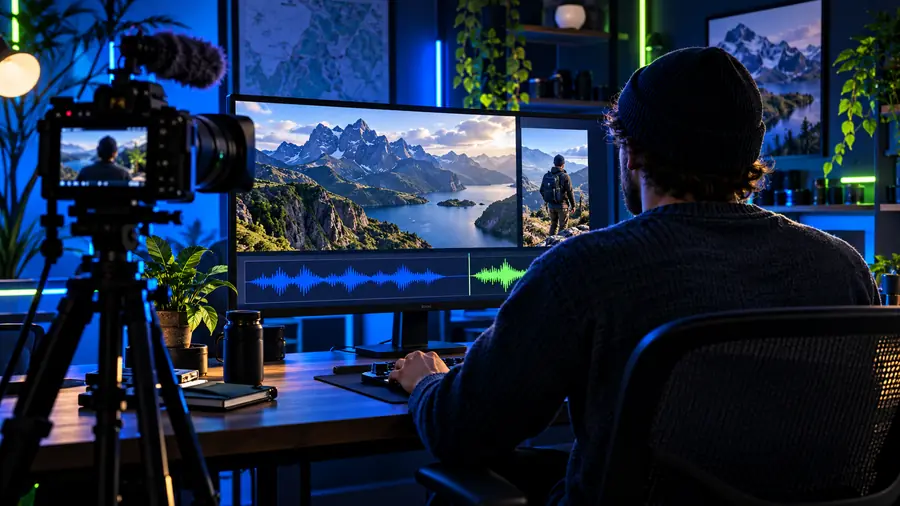
- Planned edit
Illustrative images, not two frames from the same project. For the example walkthrough, the meaningful before-and-after test is whether a viewer can find the task, follow the demonstration and see its result without waiting through repeated attempts.
Turn your plan into a reviewable video
Start with the footage you already have
Pick one video, write down its intended viewer and use the three-step review to decide what to cut. Then check the exported result against the upload checklist before publishing. The linked video destination is separate from YouTube Studio; review its available tools and terms before relying on a particular feature.
Explore video tools- Keep the opening relevant to the title.
- Check speech, captions and small-screen readability.
- Review rights and upload settings separately.
YouTube workflow FAQ
You can approach a YouTube edit by arranging footage, cutting distractions and reviewing the finished video before upload. Check the current editor for the particular tools and export options your project needs, then handle publication settings in YouTube Studio.
Start with the viewer's goal: show or state the result, then keep the steps that explain how to get there. Remove repeated attempts before adding decorative elements, because a clear sequence matters more than extra transitions.
No. Whether captions are added during editing or through YouTube, names, numbers and timing deserve a separate check. Watch the video with captions on and correct errors before directing viewers to them.
Watch the processed video, including its opening and a section with speech or on-screen text. Confirm the title, description, thumbnail, visibility and audience settings, and review any rights notices before sharing.